 Forma
Guide › Track it your way
Ways to log your food
Search, barcode, by hand, saved meals, or a photo with Power: pick what suits you.
Forma gives you several ways to put a meal into your daily calories. They all end in the same place: the numbers checked, then saved to the meal you chose. Pick the one that is least work today.
When to use it
- You are eating at home and can search for the food you cooked.
- You are holding a packaged food with a barcode on it.
- You eat the same breakfast most days and do not want to type at all.
- You are in a hurry and would rather photograph the plate than look anything up.
Step by step
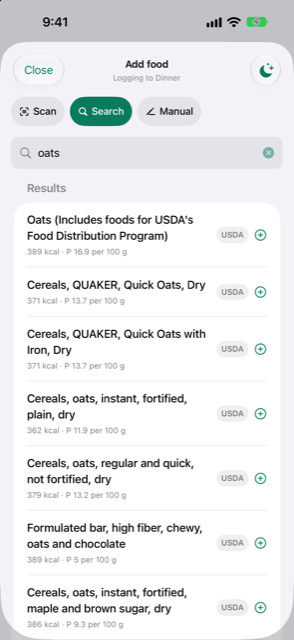
On Fuel, choose the meal in the Logging to menu (Breakfast, Lunch, Dinner or Snack), then pick a way to add. The plus at the top right, Add food, opens the same sheet.
Search
- Tap Search and type in Search foods. Your own foods and recent foods come first, then the bundled USDA table, then packaged foods from Open Food Facts.
- Tap a result. Change the Grams, or tap one of the quick amounts.
- Check the numbers, then tap Save to the meal you chose.
Scan
- Tap Scan and point the camera at the barcode.
- No camera, or the bars will not read? Type the digits printed under the bars and tap Look up.
Manual
- Tap Manual and type the name, the grams, and the protein, carbs and fat.
- Forma works out the calories from the protein, carbs and fat you typed, so they always add up.
Saved meals and Repeat
- Log a meal once.
- Tap the three dots on one of its lines, then Keep as a meal. You can also tap Keep as a meal while editing an entry you have already saved.
- Next time, open Add food. Your meal is under Saved meals, and one tap logs it.
- An empty meal on Fuel also offers Repeat, with the calories of the last time you logged that meal. Tap it to copy that meal into today.
Photo (needs AI)
Tap Photo, then photograph the plate or the label, or choose a picture from your library. The read takes about 30 seconds and runs in the background while you keep logging. It works with Apple Intelligence on iPhones that support it, or with Forma Power. If your iPhone can do neither, tapping Photo explains this, and the See Power button opens the plans. With Power it offers Turn on online AI instead. You confirm the numbers before anything is saved.
Which one to pick
| Method | Effort | Accuracy | Works offline |
|---|---|---|---|
| Search | Low | Solid: checked tables, you set the grams | Mostly (USDA yes, Open Food Facts no) |
| Scan | Low | Solid for packaged foods | Library yes; the rest needs a connection |
| Manual | Highest | Whatever you enter; nothing is guessed | Yes |
| Saved meals / Repeat | Lowest | Whatever you logged last time | Yes |
| Photo | Low, but wait about 30 seconds | An estimate. You confirm the numbers | Yes if Apple Intelligence reads it on the phone; the online read needs a connection |
Notes on each method:
- Search and scan read from real food tables. You choose the grams, and that is what decides the accuracy. A searched food with a guessed portion is no more accurate than a manual entry.
- Manual takes the most typing, and nothing estimates the portion for you. Use it for meals that are not in any database.
- Saved meals and Repeat copy whatever you logged the first time. If that entry was rough, the roughness repeats. One edit fixes it for good.
- A photo is an estimate made from a picture. Hidden ingredients, such as the oil in a dressing, will not appear. Check the numbers before saving, especially for meals that matter to your day.
Good to know
- Different ways to add the same food still work together. A food you entered by hand once becomes one of your own foods and turns up first in Search.
- A scan looks in your own foods first, then Open Food Facts. You see the numbers before anything is saved.
- Forma uses the camera only while the Scan screen is open.
- A scanned product that looks like a supplement can be handed straight to the Add supplement form.
- Searching and barcodes send only the words you typed or the barcode to Open Food Facts. Your meals stay on this phone; the backup copy goes to your own iCloud.
Related
- Log food: search, scan or by hand
- Saved meals and repeating a meal
- Change or remove an entry
- A barcode is not found
Something unclear or missing? Write to support@raveniq.ai and say which page.