 Forma
Guide › Train
Today's session
What the planner gives you and how to start.
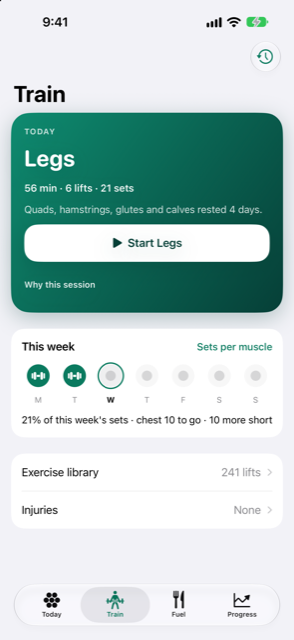
The Train tab opens on today's session: what the planner chose for you today and what to do with it.
When to use it
- You are at the gym, ready to train, and want the session.
- You want to know which muscles are rested and why today's plan is the plan.
- You want to train again today, or on your rest day.
- You left the app halfway through and want to pick up where you left off.
What Train shows
From the top:
- Today's session card: its name, a line with the length in minutes and how many lifts and how many sets, and a sentence on which muscles are rested and since when. If an injury you have logged changes today's plan, its line appears on the card.
- Below it, This week shows the days you trained and one line on your sets.
- Then two quiet rows: the Exercise library and Injuries. The Injuries row is highlighted only while an injury is changing today's plan.
- The clock button at the top right is History and reports, for everything in the past.
Step by step
- Tap Start. The button carries the session's name, so you know what you are starting. The full list of lifts opens, each with its sets, its reps and the weight to lift.
- Tap a lift to open it and log its sets. The weight and reps are filled in from the plan or from last time; change anything that was different.
- After a logged set, when a rest is due, a countdown appears at the bottom; when it ends, log the next set. No rest starts after the last working set of a lift.
- When you are done, tap Finish. A confirmation asks whether to finish, and says how many working sets will be saved.
- Confirm Finish session. You get a short summary, including Next, the session Forma suggests after this one and when. Tap Done to close it.
Leaving and coming back
You can leave the app mid-session and come back. Train shows Resume session, with your clock still running, and inside the session the header shows the elapsed time and how many lifts are done. The phone stays awake while a session screen is open, so the clock keeps running. Typed numbers survive even if iOS closes the app.
Overriding the plan
- Tap Why this session to see which muscles are ready, which are still resting and why. When the planner has nothing for you today, that screen also holds Make today a rest day.
- Want another session today after you have already trained? On the Next card, or on a rest day, tap Train anyway. A sheet states what this means and asks you to confirm, then the session is planned from how recovered you are today, not tomorrow.
- Overriding a rest day this way clears the rest mark.
If you are coming back from a break or an injury
- An injury that changes today's session shows on the plan as a line naming the area and how many lifts were swapped for today. In the session, the lifts that replace others say
Instead ofthe usual one. - Your very first session sets your starting weights. Log what you actually lift, and every session after builds on it. If you have history in another app, you can bring it in so suggestions start from your real numbers.
- Where you train, how long a session should be (45 to 90 minutes) and warm-up sets are in Settings > Profile & goal. The settings note says changes apply to the next plan.
Related
Something unclear or missing? Write to support@raveniq.ai and say which page.