 Forma
Guide › Eat
Log food: search, scan or by hand
Three ways to add a meal in seconds.
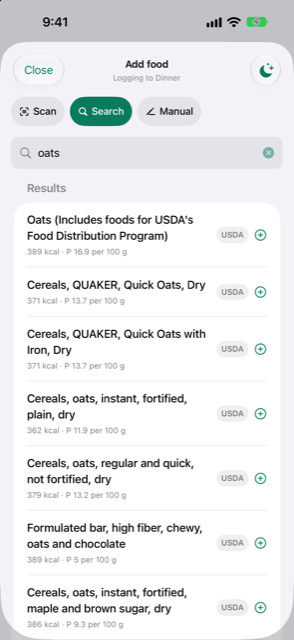
The Add food sheet is how every meal reaches your diary. One screen gives you several ways in: search, barcode scan, or typing the numbers by hand. Whichever you use, you always see the numbers on a check screen before anything is saved.
When to use it
- You just ate and want the meal in your diary.
- You are holding a packaged food and want its numbers straight from the barcode.
- You are somewhere with no signal and need logging to work anyway.
Step by step
- On Fuel, tap the plus at the top right, labelled Add food.
- Choose the meal with the meal button at the top of the sheet: Breakfast, Lunch, Snack or Dinner. A subtitle under the sheet's title reads Logging to the meal you chose.
- Pick a way to add from the row of buttons under the title.
Search
- Tap Search and type in
Search foods. Your own and recent foods come first, then the bundled USDA table (works with no connection), then packaged foods from Open Food Facts (needs the internet, so its results arrive a moment later). - Tap a result. The check screen opens with a Grams field filled to a sensible default. Change it, or tap one of the quick amounts shown under the fields.
- Check the protein, carbs and fat each item shows beside the Grams field, and the total under the items. The calories are always counted from the numbers on the screen, not taken from a database. Tap Save to the meal you chose.
Scan
- Tap Scan and point the camera at the barcode. The first time, the phone asks whether Forma may use the camera. It is used only while the Scan screen is open, and nothing is recorded or kept.
- No camera, or the bars will not read? Type the digits printed under the bars into the field (a barcode has 6 to 14 digits) and tap Look up.
- Forma looks in your own foods first, then in Open Food Facts. When it finds the product, the same check screen opens. You always see the numbers before anything is saved.
Manual
- Tap Manual. A blank entry opens: type the name, the grams, and the protein, carbs and fat. The calories box is filled in for you from those three numbers, so they always add up. Check it, then tap Save to the meal you chose.
Good to know
Offline logging works as normal: your own foods and the USDA table answer with no connection at all. Only the packaged-food results from Open Food Facts wait until you are online. With search and scan, nothing leaves your phone but the words you type into a search, or the barcode.
If a scan keeps finding nothing, see A barcode is not found.
Related
- Saved meals and repeating a meal
- Change or remove an entry
- Your day target, and why it moves
- Online AI help
Something unclear or missing? Write to support@raveniq.ai and say which page.