 Forma
Guide › Train
Log your sets
Weight, reps and the next set, with no signal needed.
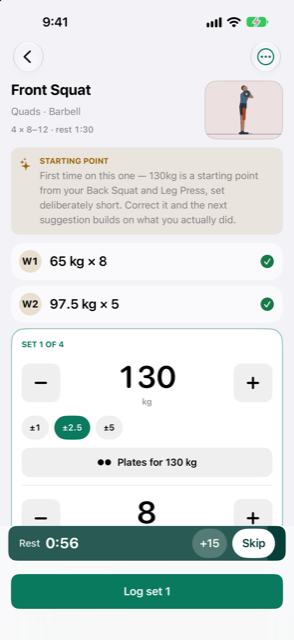
Logging a set is one screen: the weight and reps for the set you are on, and one button to press. It is built for the gym floor, where your hands are full and the signal is not worth counting on.
When to use it
- You are between sets and want to write down what you just did without losing your place.
- The weight on the bar was not what Forma suggested, and you want the log to say what really happened.
- Your first session: what you log there sets your starting weights.
- The gym has no Wi-Fi and no bars. Logging works the same offline.
Step by step
- From the session, tap a lift. Its screen shows the lift's name, its muscle group and the equipment it uses, how many sets at which rep range, and the picture of how the lift is done.
- The active set — the first one not yet logged — is the big card in the list of sets. The weight and reps are filled in from the plan or from last time. Change anything that was different.
- Change the weight with the stepper. Below it, three buttons —
±1,±2.5and±5— choose how many kilograms one tap adds or takes away. On a barbell lift there is also a Plates for … kg button that opens the plate calculator. - Change the reps with the stepper. On timed lifts, such as holds or carries, this box counts seconds instead. A lift that uses pauses shows a pause box under the reps.
- Press Log set 1 — then 2, 3 and so on. The keyboard never covers this button.
- When you log the last set of the lift, Forma asks How many more could you have done? Tap
0(none),1–2(a couple) or3+(plenty). Tap Skip if you would rather not say. - The rest timer starts after each logged set. There is no rest after the last set: the lift is done and you go back to the list of lifts.
Logged sets shrink into the list above the card. Tap any set you have not logged yet to make it the active one. When a set you log is heavier than anything you have lifted before, it gets a PR badge.
After the set
The set where you answered shows a short line, such as 1–2 left, so you can see how close you came. While you pick numbers, the active set shows what you lifted for the same set last session. At the bottom of the lift, the Last time card lists every set of that lift from your previous session.
Good to know
- Another set adds an extra set after the planned ones. Use it when you have more left than the plan asked for.
- Warm-up sets come first when the lift has them. Log them with Log warm-up; they are marked
W1,W2and never count toward your volume, your recovery or your records. - Your numbers are saved as you enter them, and the log writes them down when Forma leaves the foreground. If iOS closes Forma in the background, the numbers are still there.
- Logged a set wrong, or answered the wrong thing? Fix it afterwards: open History and reports, open the session, tap the set and change it. Changes to the past flow into your next suggestion.
- If a set cannot be saved, Forma says so with an alert called Check the set, telling you what to fix.
- You need no signal anywhere in this flow. Your sets are stored on the phone, and your iCloud backup catches up next time you are online.
- The question after the last set of each lift — How many more could you have done? — is what lets the next session push a little harder or hold back.
Related
Something unclear or missing? Write to support@raveniq.ai and say which page.